Burst Detection
Written By Matt Sywulak
Last updated About 2 months ago
Burst Detection flags recipients receiving unusually high email volume in short timeframes—a tactic attackers use to overwhelm users with fake tech support scams or distraction campaigns.
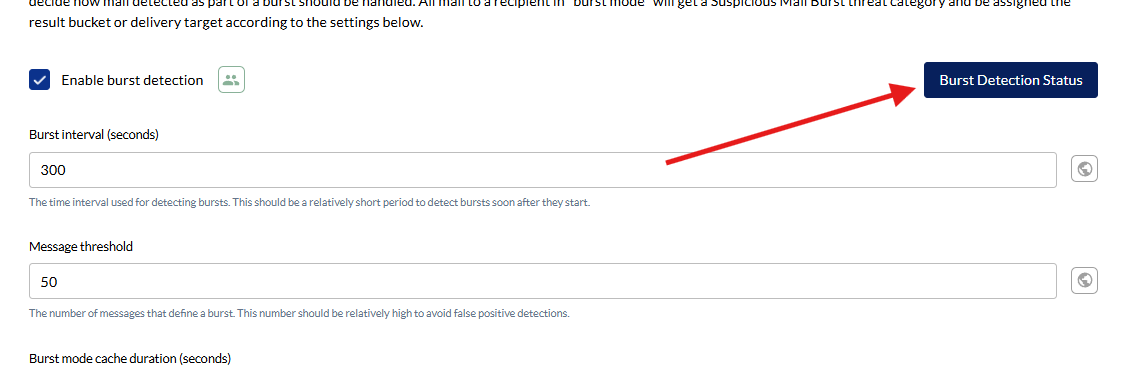
When a recipient hits the message threshold within the burst interval, INKY puts them in "burst mode" and classifies incoming mail as "Suspicious Mail Burst" for the cache duration.
Admin Center > Analysis > Burst Detection
Configuration
Burst Interval (seconds) - Time window to count messages (e.g., 300 = 5 minutes)
Message Threshold - Number of messages triggering burst mode (e.g., 20 messages)
Burst Mode Cache Duration (seconds) - How long recipient stays in burst mode after trigger (e.g., 300 = 5 minutes)
Result Bucket - Threat category for burst messages (typically "Caution (Spam)")
Delivery Target - Override normal routing (e.g., send to Junk Folder)
Ignore Senders/Recipients - Exclude trusted high-volume senders from burst calculations. Add email addresses or domains.
Outbound Burst Detection Is Configured Separately
Everything on this page applies to inbound analysis. Outbound Protection has its own burst detection rule, configured under Admin Center > Outbound, in the Compromised Account Detection Signals section.
The outbound rule counts how many recipients a sender is reaching, not how many messages a recipient receives, so its threshold is labeled Recipient threshold. Changing settings on this page has no effect on the outbound rule, and vice versa.
Exclusion Options
Exclude Internal or Trusted 3rd Party messages - Skip these from burst calculations
Exclude Known External messages - Skip verified external contacts
Recommended Settings
Standard configuration:
Interval: 300 seconds (5 minutes)
Threshold: 20 messages
Cache duration: 300 seconds
Result bucket: Caution (Spam)
Delivery: Junk Folder
Ignore senders: Add marketing automation tools, ticketing systems, newsletters, or any legitimate high-volume senders
Fine-Tuning
Too many false positives? Increase message threshold or add more senders to ignore list
Missing real bursts? Lower threshold or shorten interval
Managing Active Bursts
Admin Center > Analysis > Burst Detection > Status
Active Recipients - Currently in burst mode with expiration time shown
Extend - Add more time to burst mode
Reset - End burst mode immediately
Prevent - Move to prevented list (temporarily exempt)
Prevented Recipients - Temporarily exempt from burst detection until end time
Extend - Increase prevention duration
Remove - Resume normal burst monitoring
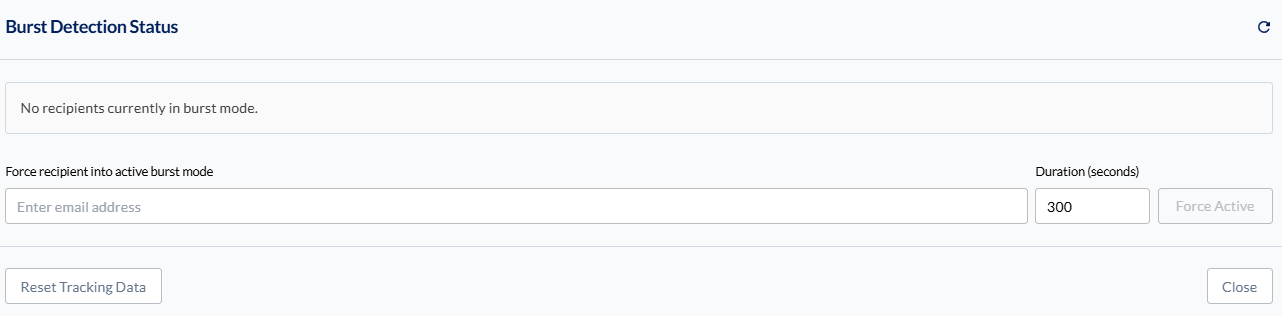
Force recipient into burst mode - Manually trigger burst mode for specific email address and duration (seconds). Useful for testing or known attack scenarios.
Reset Tracking Data - Clears all historical burst data for team. Settings remain unchanged. System starts fresh tracking.
Warning: Use Prevent carefully—exempting a recipient under active attack creates a blind spot. For permanent exclusions, use Ignore Recipients in main settings.
Available in: All bundles
Was this helpful?
Still need help? Ask the team