INKY Dashboard v1.10.12
New Features
BullPhish & INKY Campaign Direct Mailbox Injection (DMI) for M365 and Google Workspace
The INKY integration connects BullPhish ID (BPID) with INKY's email protection platform, enabling direct campaign email delivery to protected targets without routing through SMTP. This integration enables Partner Administrators to synchronize organizations from INKY, monitor protection status per organization, and ensure campaign emails reach every target through the most appropriate delivery path.
Direct INKY delivery: Campaign emails sent to INKY-protected targets bypass SMTP and are delivered through the INKY integration, improving deliverability and traceability.
Mixed-mode delivery: When an organization contains both protected and unprotected targets, BPID automatically routes protected targets through INKY and unprotected targets through SMTP without interrupting the campaign.
Organization status tracking: The integration continuously synchronizes organization protection state and displays one of four statuses — Active, Partially Active, Inactive, or Error — so you can identify and resolve coverage gaps.
Unprotected target export: For Partially Active or Error organizations, you can download a CSV listing every unprotected target, making it straightforward to remediate missing INKY coverage.
Credential lifecycle management: You can update, replace, or revoke the INKY application programming interface (API) key at any time. If credentials fail, BPID falls back to SMTP and alerts you with a banner and an error status.
Mutual exclusivity with Graphus: INKY and Graphus cannot be active simultaneously. BPID enforces this constraint and guides you through disconnecting one integration before enabling the other.
To learn more: Enabling direct campaign email delivery through INKY and Integration: BullPhish ID & INKY - INKY
Email authentication on the Routing page
Check each domain's SPF, DKIM and DMARC where you set up mail routing.
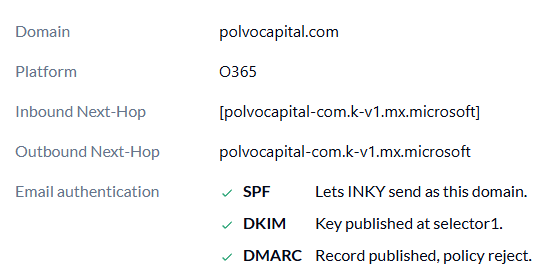
Each configured domain on Admin Center > Routing shows its SPF, DKIM and DMARC records as DNS publishes them, each marked OK or needing action.
Each row says when it was last checked, and Check again looks it up now.
A domain whose DNS Microsoft or Google publishes for you, such as contoso.onmicrosoft.com, says there is nothing to change.
Phishing simulation reports
Reports of your own phishing simulations are closed as they arrive, and you choose who hears about them.
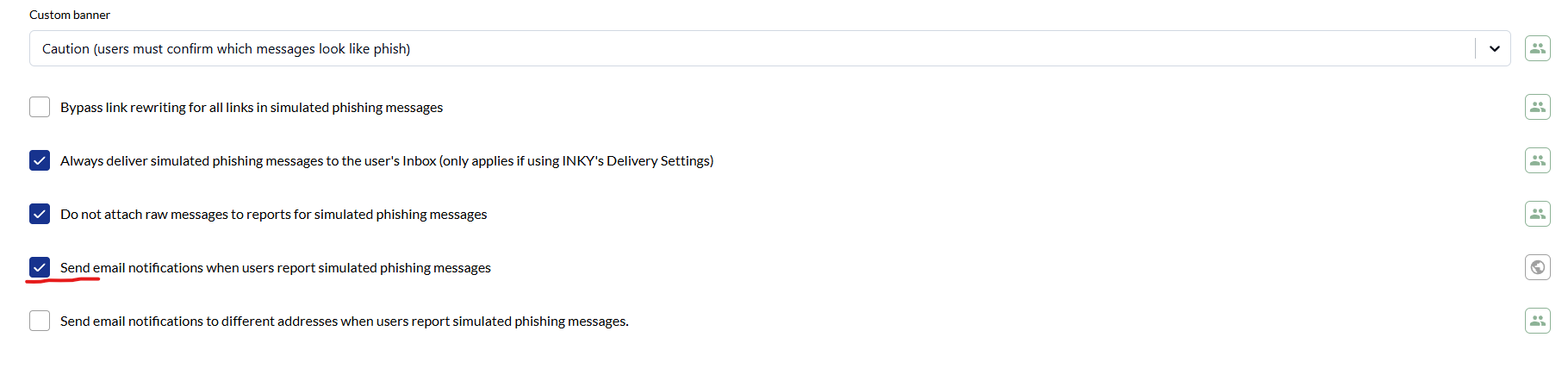
When a user reports one of your team's recognized phishing simulations, INKY closes the report when it arrives.
Admin Center > Phishing Awareness Training has "Send email notifications when users report simulated phishing messages". It is on unless you turn it off, so nothing changes until you do.
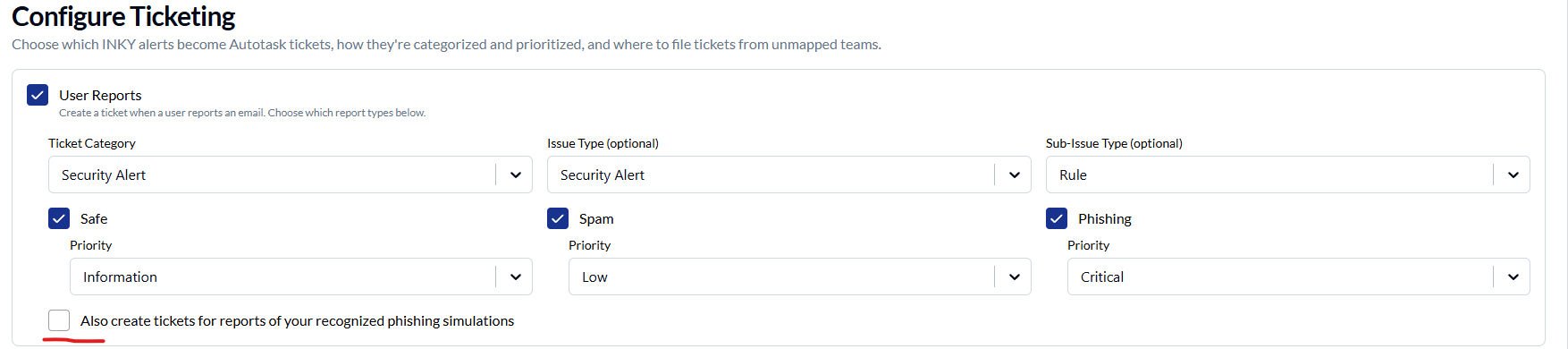
The Autotask integration has "Also create tickets for reports of your recognized phishing simulations". It is off unless you turn it on.
Improvements
Signature background for dark mode
Keep signatures from showing a white box in dark-mode mail apps.
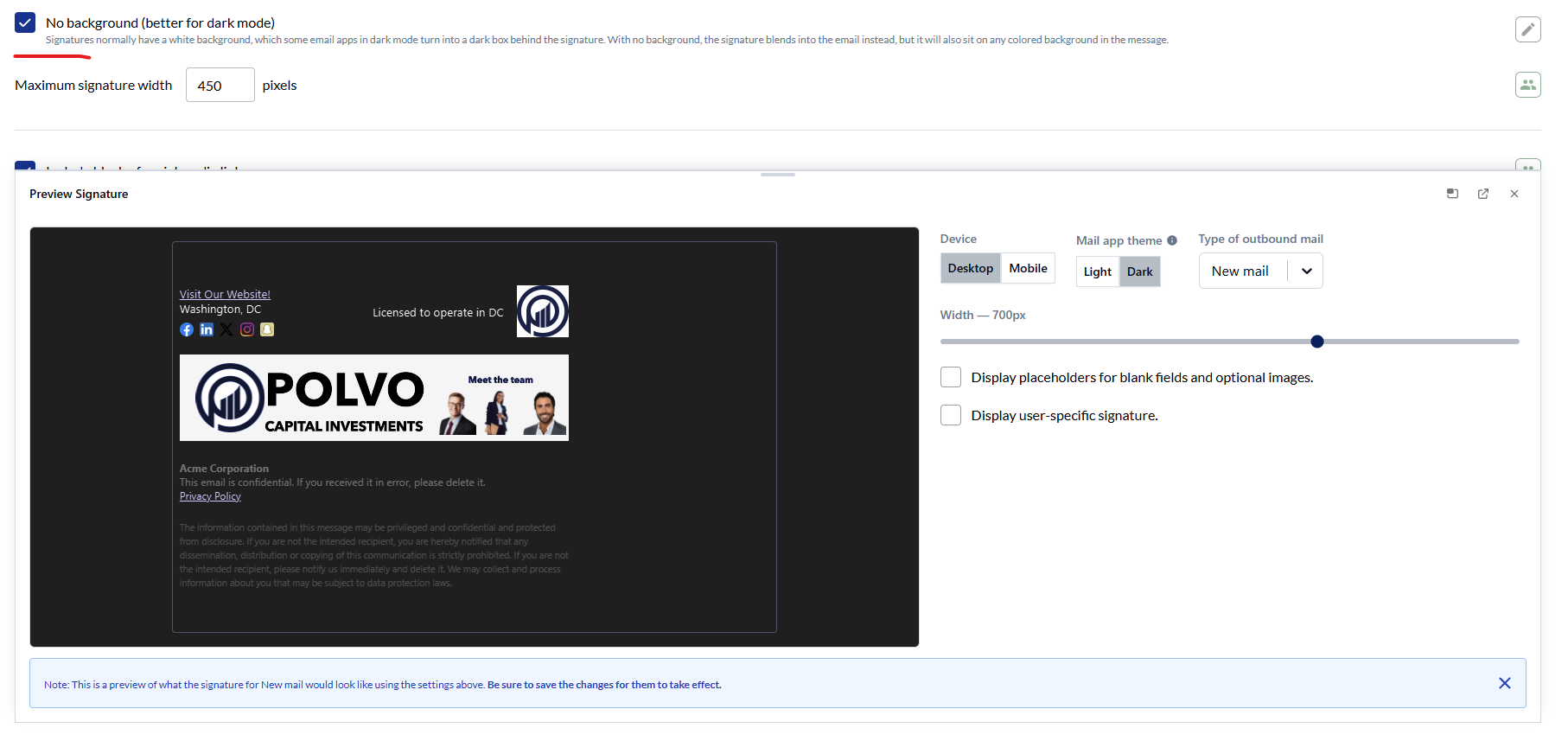
Signature settings have a No background option.
The preview has a Light / Dark mail app toggle, so you can see the signature both ways before saving.
Message Analyzed card for outbound mail
See which rules an outbound message triggered.
For outbound messages, the Message Analyzed card lists the rules the message triggered.
An ATO Action row says what the Account Takeover rule did with the message.
BullPhish ID not selected
Catch a BullPhish ID connection that isn't selected under Platforms.

Admin Center > Phishing Awareness Training shows a caution beside Platforms when BullPhish ID is connected to your team but not selected.
Without it selected, BullPhish ID simulations get real warning banners instead of the simulation settings on that page.
The caution appears as soon as BullPhish ID is unticked, before you save.
Fixes
Threat Center
The last card of an outbound message's timeline shows what happened to it: Message Quarantined, Discarded or Delivered, with an expiry naming what it was waiting on. It previously read Message Delivered for every outbound message.
An approver's Approved or Denied stays on the timeline card when INKY then carries it out. It previously showed the system delivery instead.
The Quarantined, Discarded and Delivered counts match the Status column.
Long subjects and recipients wrap inside their column, with the full subject in a tooltip, instead of running under the date and count columns.
AI Recommendations
When INKY can't apply or dismiss a recommendation, the page shows the reason instead of a generic error.