INKY Dashboard v1.9.2
New Features
Autotask Smart Ticketing
INKY alerts can now create tickets in your Autotask PSA automatically, so email security events land in the same queue your team already works from.
Tickets are created when a user reports an email as safe, spam, or phishing, and when INKY detects a potential account takeover.
Category, priority, issue type, and sub-issue type are pulled live from your own Autotask instance, so the options you pick always match your current setup.
Each INKY team maps to an Autotask company, so every ticket is filed under the right customer. Teams you haven't mapped fall back to a default company or create no ticket at all.
Setup is a three-step wizard on the Integrations page. You authorize once through Autotask's own sign-in screen; INKY never sees your Autotask credentials.

Available to Kaseya-provisioned MSP and MME partners.
Learn more about Autotask Smart Ticketing.
Gradient MSP integration
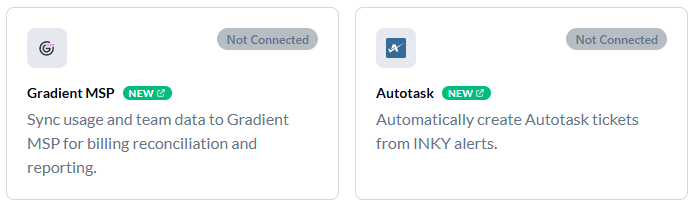
Connect INKY to Gradient MSP so your team and mailbox usage data flows into Gradient for billing reconciliation across your stack.
Gradient reads team membership and usage directly from INKY, so the numbers you bill against match what INKY is actually protecting — no spreadsheet exports or manual counts.
Setup is a short wizard on the Integrations page. INKY generates a scoped API key, you paste it into Gradient under Integrations → INKY, and INKY watches for Gradient's first call and confirms the connection for you.
The key is read-only and scoped to team and usage data only. It can't change settings, read mail, or act on your INKY instance in any way.
Connect once at the organization level and child teams are covered automatically or give an individual team its own connection when you need to bill it separately.
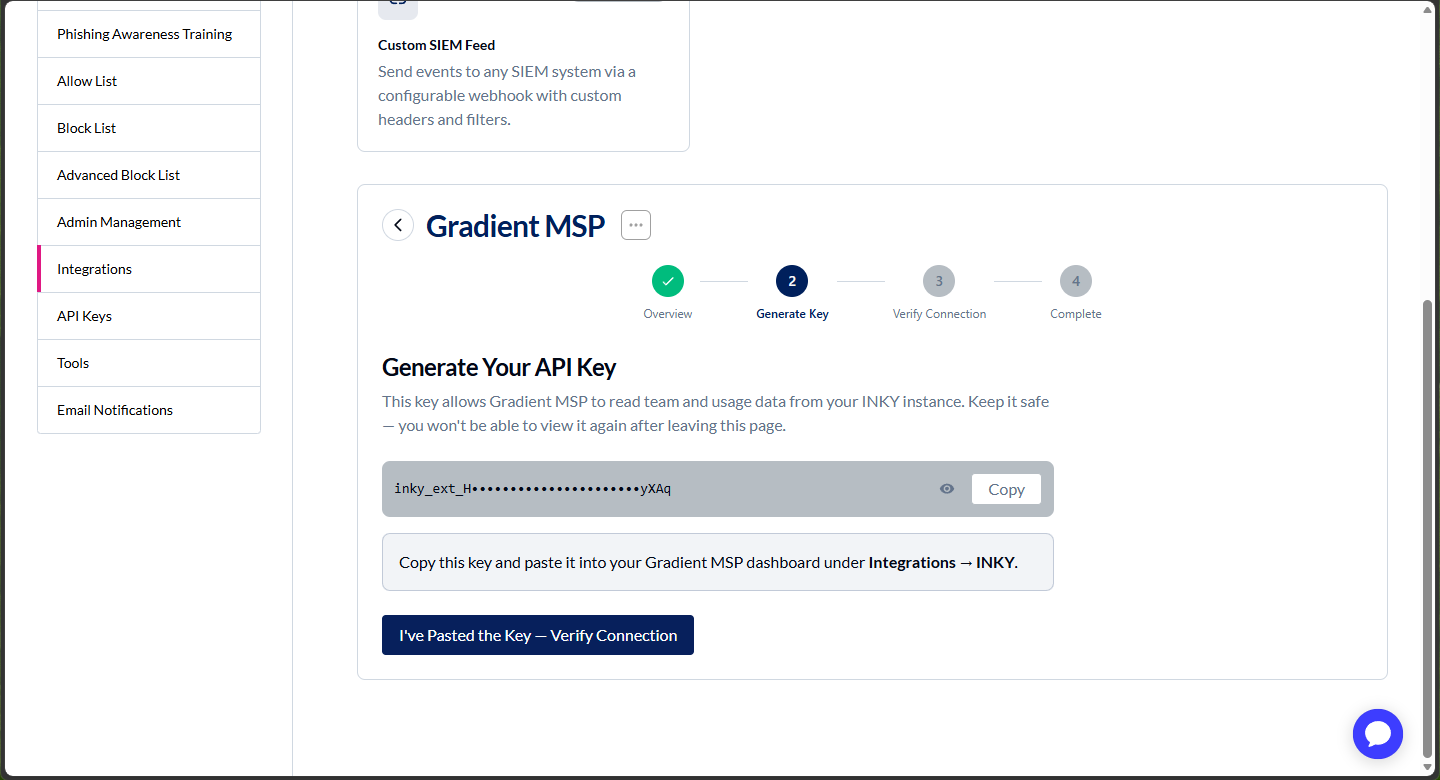
The key value is shown only once, when it's generated, so copy it into Gradient before you leave the page. If you lose it, generate a new one from the same wizard.
Available on Kaseya SKUs.
Learn more about the Gradient MSP integration.
Jump anywhere with the command palette
Press Cmd+K (or Ctrl+K on Windows) anywhere in the dashboard to open a search box that takes you straight where you need to go.
Search every page in the dashboard by name, without hunting through menus.
Search settings by what they actually do, not just what the page is called. Typing "QR code" finds the Analysis page; "whitelist" finds the allow list; "journaling" finds routing.
Jump straight to a specific setting, not just the page it lives on. The palette scrolls to the section and highlights it when you land.
Start common tasks directly, such as adding a sender to the allow list or block list, adding a VIP, or running a message trace.

The palette only shows what you can already reach, so what you see reflects your own permissions and your team's configuration.
Style the signature footer and disclaimer
Set the font, size, and color of your signature footer text and mandatory disclaimer the same way you already style every other signature field.
Footer text and the mandatory disclaimer now have their own rows in the Layout tab's Styling & Formatting section, alongside the fields that were already styleable.
These styles inherit down the team hierarchy, so setting them once at the organization level carries to child teams unless a team overrides them.
This replaces hand-authored HTML for these two fields, which never inherited and had to be re-pasted for every team.
Learn more about Footers and Disclaimers and Signature Styling & Formatting.
See what your team inherits from its organization
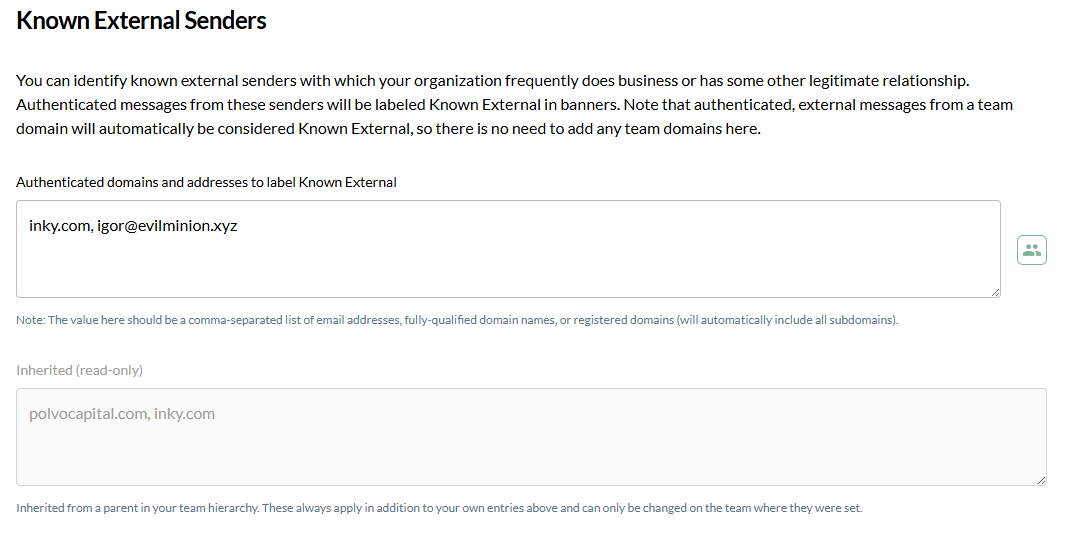
Analysis settings that merge down the hierarchy now show the inherited entries read-only beneath your own, so you can add team-specific entries without re-entering what the organization already set.
Applies to known external senders, trusted third-party senders, blocked country codes, and blocked TLDs.
The editable field now holds only your team's own entries. Entries inherited from the parent organization appear below it in a read-only list.
Both sets still apply — inherited and team-specific entries are combined when INKY analyzes mail.
Learn more about Known External Senders, Trusted Third-Party Senders, and Organization Settings & Inheritance.
Fixes
Outbound rule conditions now evaluate
Conditions added to outbound burst detection, dangerous links, and spam and phishing rules are now saved in the format the analysis engine reads.
Previously these conditions were saved and displayed correctly but skipped during analysis, so the rule applied more broadly than configured.
Existing saved rules keep loading and are written in the corrected format the next time you save them.
Learn more about Configure Workflow Rules.
Per-field signature styles now save
Setting a per-field style override for the first time now enables Save and Revert. Previously the change wasn't recognized while the field was still inheriting, so it couldn't be saved.
Footer text editor restored
The footer text (HTML) editor is back in the Team Data tab, below the footer image controls. It was dropped when the tabbed signature layout was introduced.
Learn more about Logos & Footers.