INKY Dashboard v1.9.6
New Features
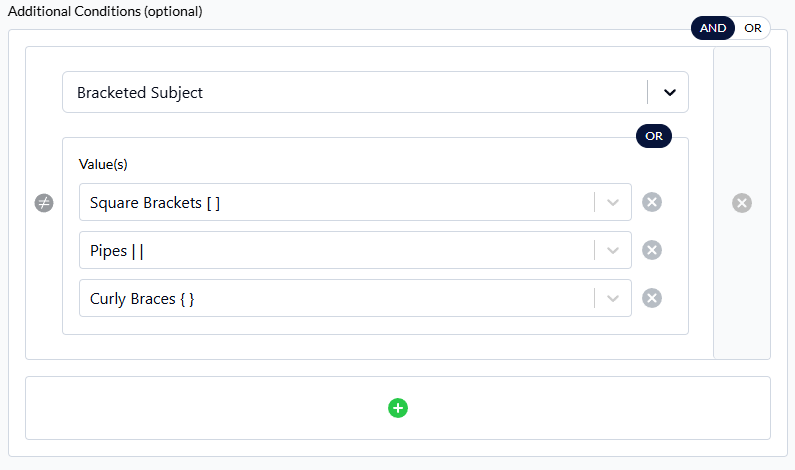
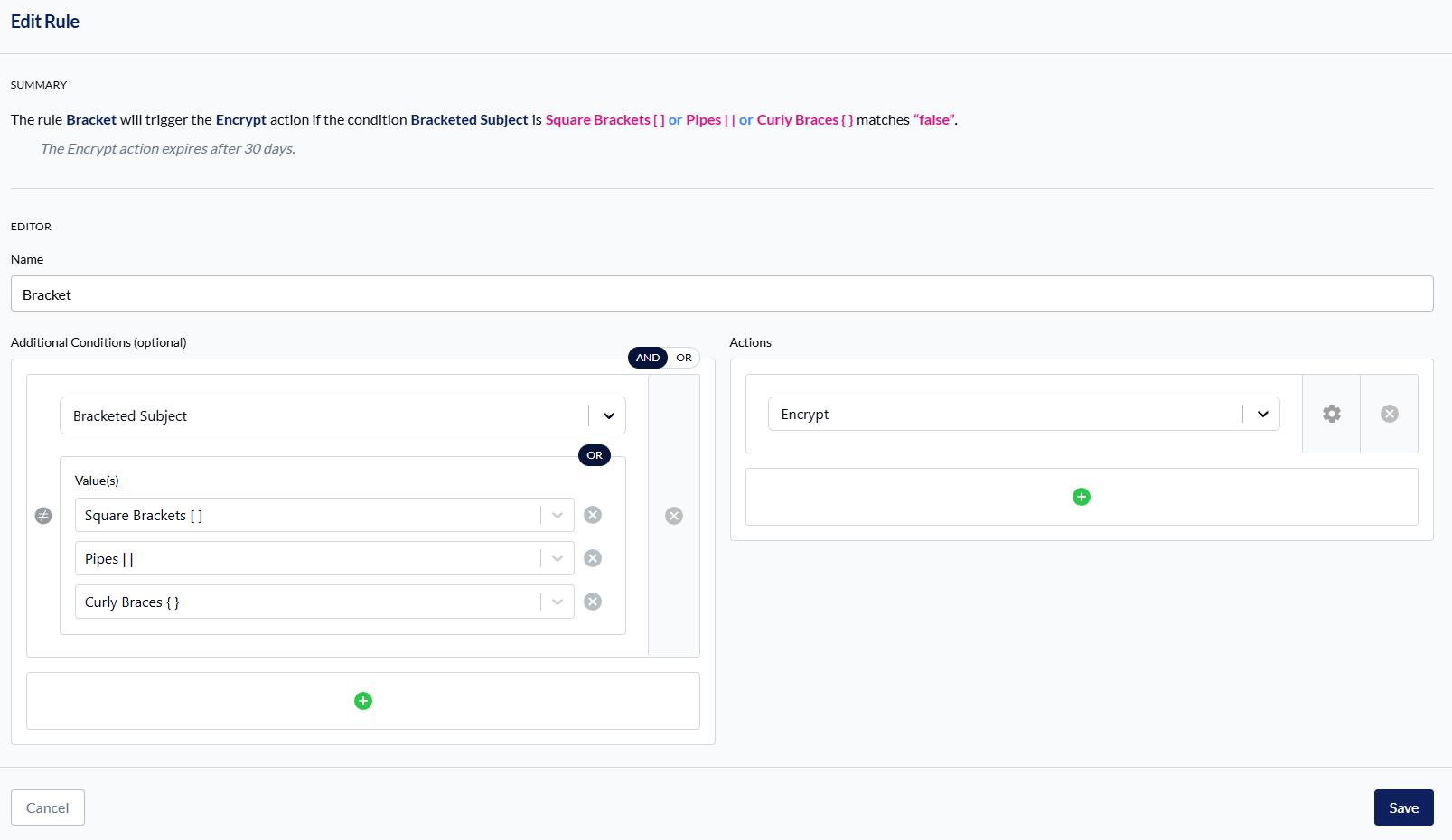
Bracketed Subject condition for outbound rules
Outbound rules can now match a subject line that is wrapped in brackets — the convention many senders already use to ask for a message to be encrypted.
Choose which bracket style the rule matches — Square Brackets [ ], Pipes | |, or Curly Braces { }. Select more than one and the subject matches if it uses any of them; a subject has only one outermost pair, so these combine with OR only and the rule editor shows a static OR badge in place of the AND/OR switch.
The whole subject must be wrapped in the style you select.
Reply and forward prefixes are stripped before matching, so a reply within an encrypted thread keeps matching the rule.
Example subjects, with Square Brackets [ ] selected:
[Confidential report]— matchesRe: [Confidential report]— matches; reply and forward prefixes are stripped first[Secure Info] Attached— no match; the bracket has to close at the end of the subject, not partway throughQuarterly report [confidential]— no match; the subject has to start with the bracket[Confidential report)— no match; the closing character must match the style
Learn more about Configure Workflow Rules for Inky here.
Improvements
Autotask user-report ticketing is now per report type
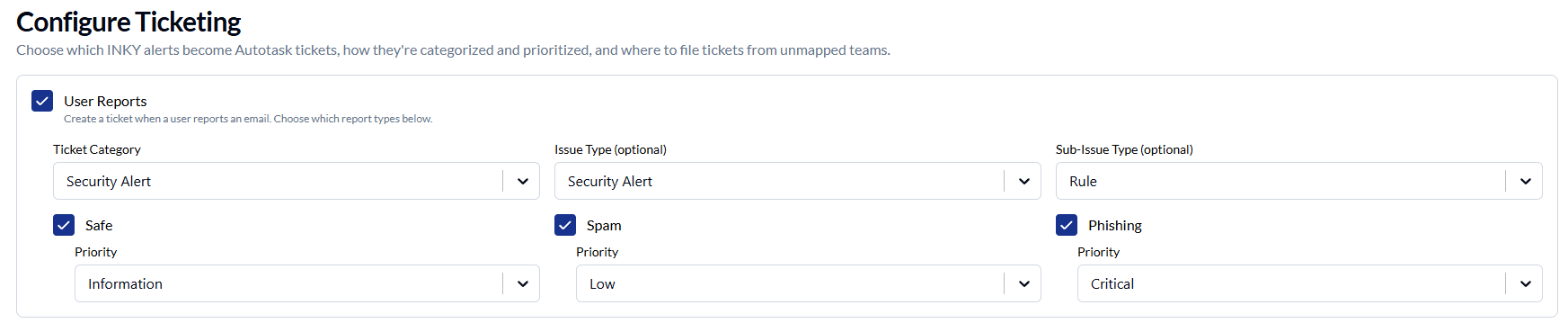
Autotask ticketing for user reports is configured per report type, so you can ticket only the reports you want to act on.
Safe, spam and phishing reports each get their own toggle and their own ticket priority.
Previously, turning User Reports on ticketed all three and required a priority for each, which made a phishing-only configuration impossible to save.
Existing connections keep every report type enabled, so the tickets you receive today do not change.
Learn more about Autotask Ticketing Integration for Inky here.
Bug Fixes
Outbound approvers list highlighted two rows at once
Selecting a rule in the outbound approvers list no longer highlights a second, unrelated rule alongside it.
When an account-takeover rule and a default rule shared the same sender pattern, selecting either one highlighted both.
Selection now distinguishes rules by match type as well as by sender pattern, so each row selects on its own.
Learn more about Set Up Workflow Approvers for Inky here.
Also available
Approve & Encrypt
A reminder of an option that is easy to miss: an approver can release a held outbound message and encrypt it in a single step, without sending it back to the sender.
Outbound workflow approval notifications carry a third action alongside Approve and Reject. Choosing Approve & Encrypt releases the message and delivers it as an encrypted notification rather than plain text.
The recipient receives a link to read the message through the INKY encryption portal, so a message that legitimately needs to go out does not travel in the clear.
Turn it on under Settings → Outbound Protection → Global Protection Settings by checking Enable Approve & Encrypt option in workflow notifications.
Requires INKY Pro, with outbound encryption licensed and configured for the team. Contact your account team if you do not see the setting.
Learn more about OMP Approve & Encrypt for Inky here.