Gradient MSP Integration
Written By Matt Sywulak
Last updated 3 months ago
The Gradient MSP integration lets Gradient read team and usage data from INKY, so your INKY mailbox counts reconcile automatically against what you bill.
Security and navigation
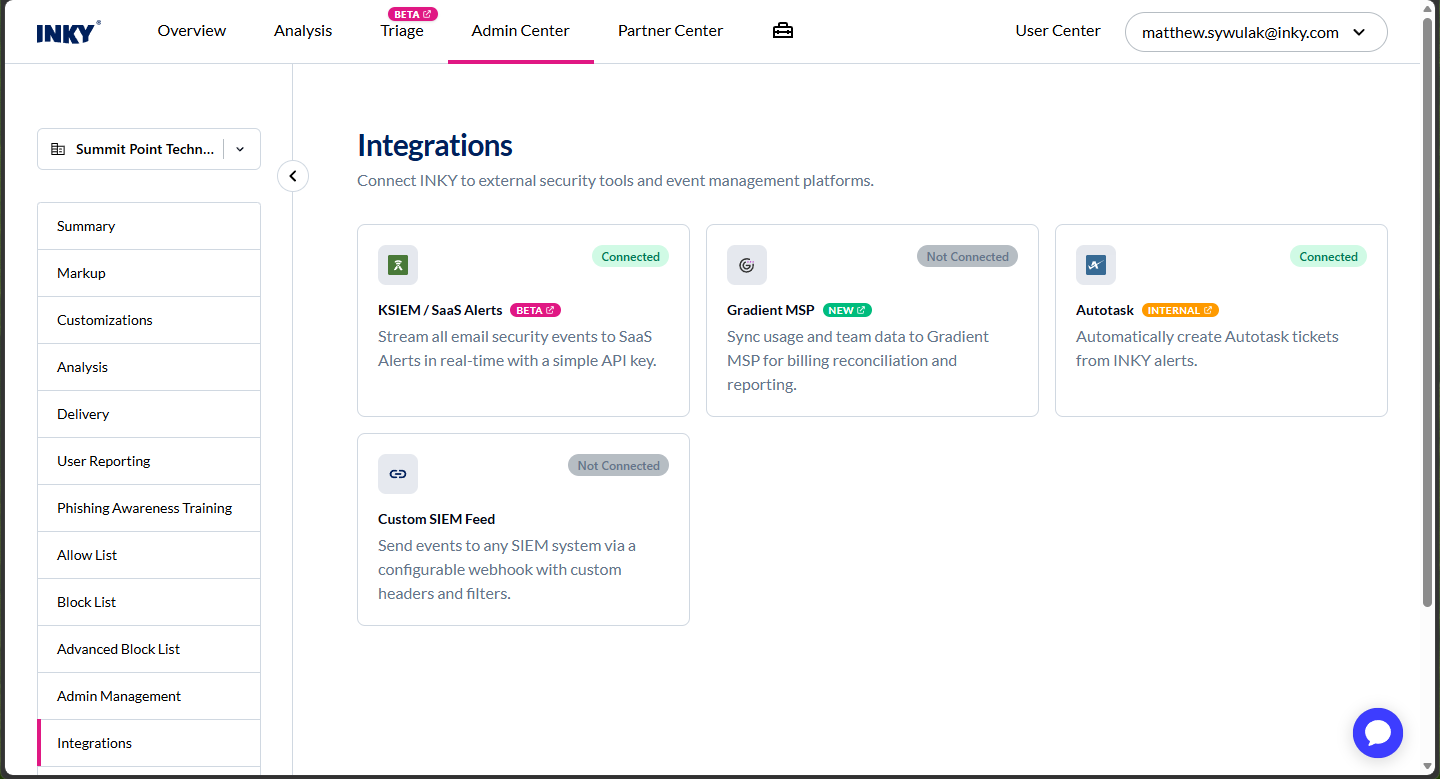
INKY NAVIGATION: Admin Center > Integrations > Gradient MSP.
INKY PERMISSIONS: Super Admin role required. The wizard uses the API Keys permission to read, create, and revoke the integration key.
Gradient NAVIGATION: Integrations > INKY, in your Gradient MSP dashboard.
Gradient PERMISSIONS: Admin access to configure integrations in Gradient MSP.
Prerequisites
Your organization must be on a Kaseya SKU. Legacy INKY accounts are not eligible and must migrate first. Contact your account team to start that process.
An active Gradient MSP account, with admin access to configure integrations in Gradient.
The Gradient MSP integration must be enabled for your account. If you don't see the Gradient MSP card on the Integrations page, contact your Kaseya representative.
About this integration
Gradient MSP reconciles billing across the tools in your stack. This integration gives Gradient a scoped API key it can use to read two things from INKY on your behalf:
Team data: Your teams and their membership.
Usage data: Mailbox counts and usage per team.
The direction matters: Gradient pulls from INKY on its own schedule. INKY does not push anything to Gradient, and nothing in INKY changes when the integration is connected.
Note: The key is read-only and scoped to team and usage data only. It cannot change settings, read mail, or take any action on your INKY instance.
Setup is a four-step wizard on the Integrations page:
Overview: What you'll need and how the connection works.
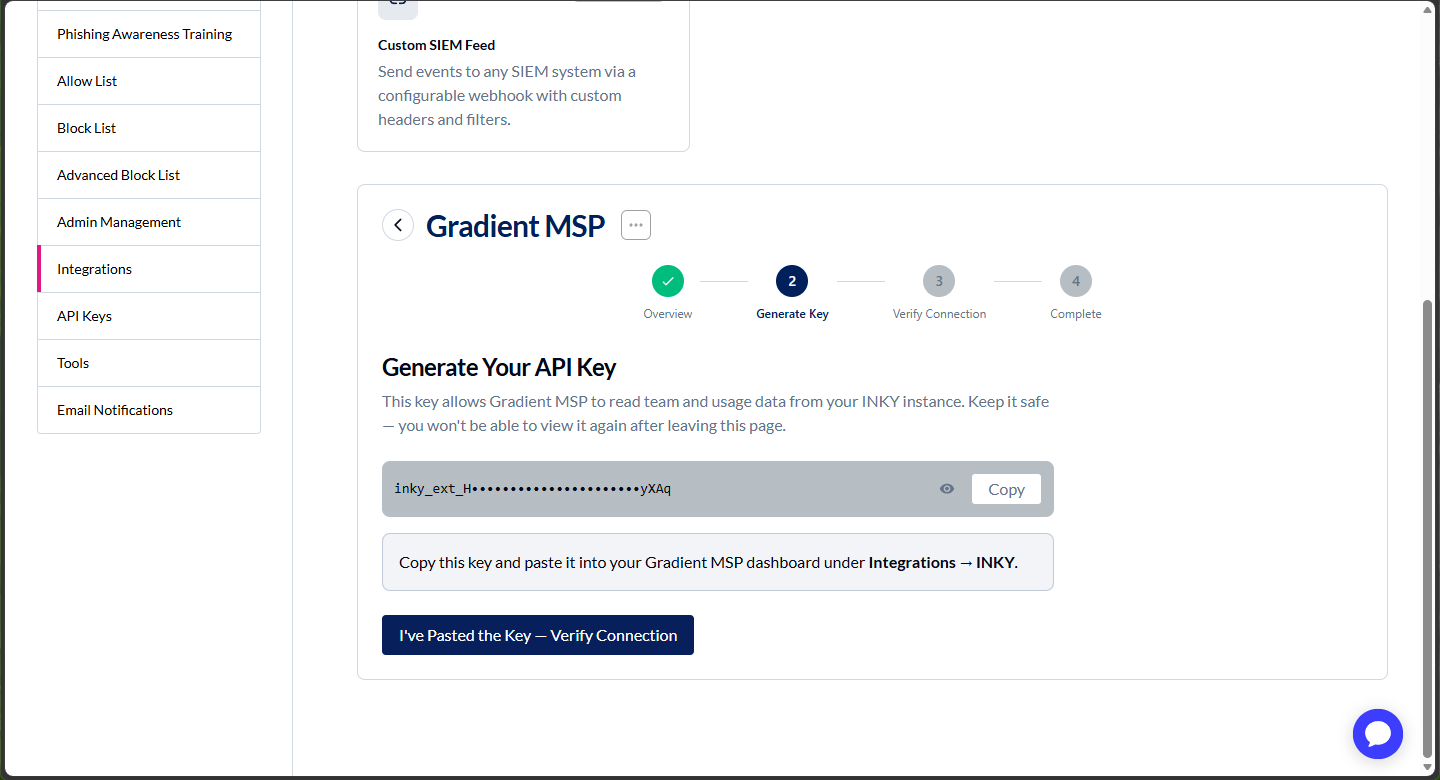
Generate Key: INKY mints an API key scoped to the Gradient MSP integration.
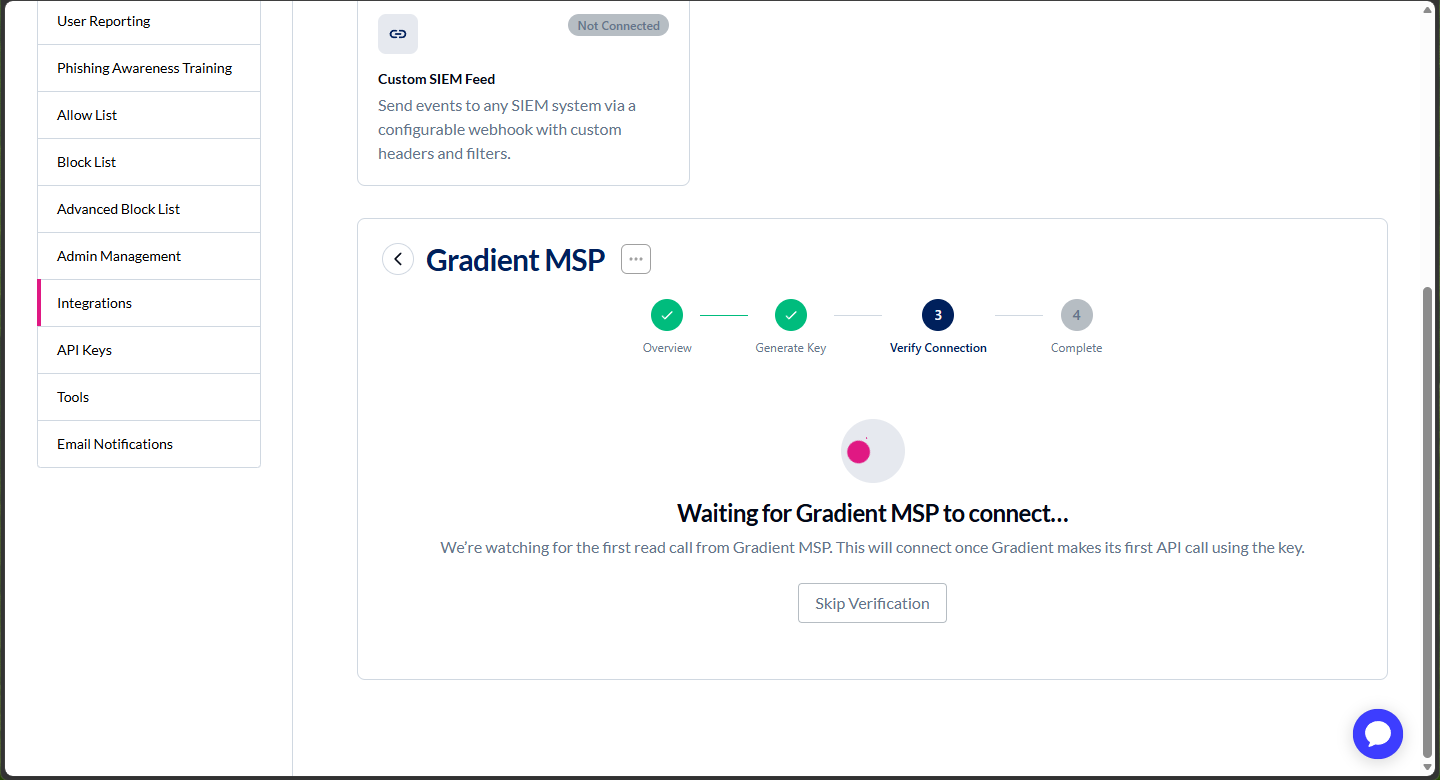
Verify Connection: You paste the key into Gradient, and INKY watches for Gradient's first read call.
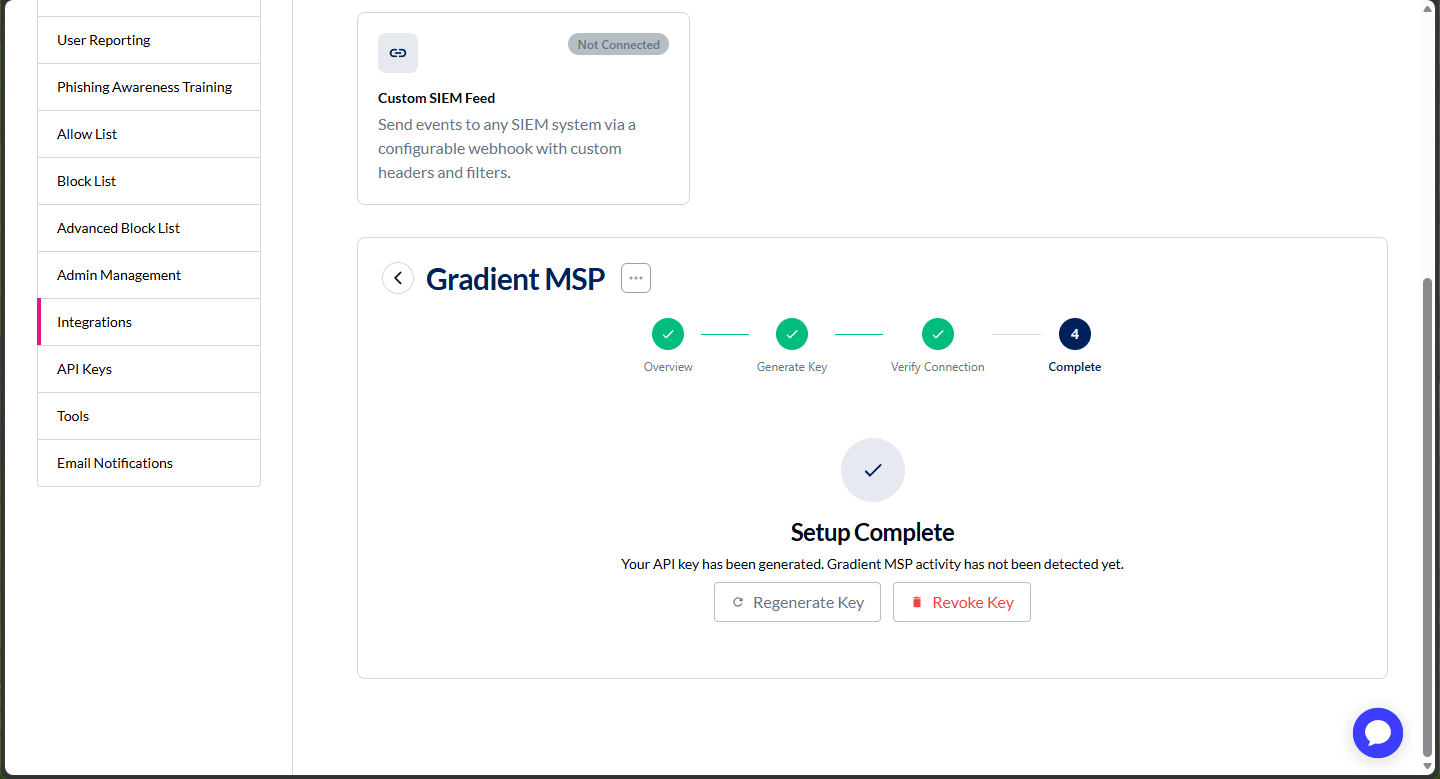
Complete: The integration shows as connected, with the time of Gradient's first call.
Because the connection completes on Gradient's first call rather than on a handshake from INKY, the integration doesn't finish the moment you paste the key. It finishes when Gradient actually reads.
Organization-level and team-level connections
You can connect at the organization level, in which case child teams are covered by that connection and show as connected through the organization. A child team can still create its own team-specific connection when you need to bill or report on it separately.
Use case
Without this integration, reconciling INKY against your billing means exporting mailbox counts by hand, per team, every billing cycle — and the numbers drift as soon as tenants add or remove users.
Connecting Gradient MSP closes that gap. Gradient reads current team and usage data straight from INKY, so what you bill matches what INKY is actually protecting, without manual counts.
How to...
Connect INKY to Gradient MSP
To connect the integration, complete the following steps:
Select Admin Center > Integrations.
In the Team selector field, select the team or organization you're connecting. To cover child teams with a single connection, select the root organization (building icon).
Click the Gradient MSP card, then click Get Started.
Review what you'll need, then click Generate API Key.
Copy the key. Click the eye icon to reveal it or use the copy button.
Note: The key value is shown only once, when it's generated. You can't view it again after leaving this page. Copy it into Gradient before you navigate away. If you lose it, generate a new one — see Regenerate or revoke the key below.
In your Gradient MSP dashboard, go to Integrations > INKY and paste the key.
Back in INKY, click I've Pasted the Key — Verify Connection.
INKY watches for Gradient's first read call for up to two minutes. When it arrives, the wizard shows Connected Successfully along with the time of that first call.
Finish when verification times out
If Gradient hasn't called within two minutes, INKY stops waiting and tells you it hasn't detected any activity yet. This is common — Gradient reads on its own schedule, so the first call may not happen while you're watching.
You have two options:
Try Again: Restarts the two-minute watch.
Skip Verification: Finishes the wizard. The key stays active and the integration shows as Pending until Gradient's first call, at which point it moves to Connected on its own. No further action is needed from you.
A timeout does not mean setup failed. If Gradient never connects, the most likely cause is that the key wasn't pasted, or was pasted incorrectly, in Gradient.
Regenerate or revoke the key
The following options are available from the Gradient MSP wizard once a key exists:
Regenerate Key: Issues a new key and revokes the old one. Use this if the key was lost before you pasted it, or if you need to rotate it. You must paste the new key into Gradient — the old one stops working immediately.
Revoke Key (or Revoke & Start Over): Deletes the key and disconnects the integration. Gradient stops being able to read team and usage data from INKY.
If you return to the wizard and a key was generated but Gradient never connected, INKY shows a Previously Generated Key screen. The key value can't be recovered from there — regenerate it or revoke it and start over.
FAQ
I lost the key before pasting it into Gradient. What now?
Regenerate it.
INKY shows the key value only once, at generation, and can't retrieve it afterward. Open the Gradient MSP wizard and click Regenerate Key — that issues a new key and revokes the old one. Paste the new key into Gradient.
Can Gradient change anything in my INKY instance?
No.
The key is read-only and scoped to team and usage data only. It can't change settings, read mail, quarantine or release messages, or take any other action.
The wizard timed out. Did setup fail?
Usually not.
Gradient reads on its own schedule, so its first call often lands after the two-minute window. Click Skip Verification to finish. The integration moves to Connected by itself once Gradient calls. If it's still Pending the next day, re-check that the key was pasted correctly in Gradient.
Do I need a separate key for every team?
No, not if you connect at the organization level.
An organization-level connection covers its child teams. Create a team-specific connection only when you need that team billed or reported separately.
I'm an existing INKY customer. Can I use the Gradient MSP integration?
Only on a Kaseya SKU.
If your account predates that model, you must migrate to a Kaseya SKU before the integration becomes available. Your account team can explain what that involves.
Where does Gradient's data come from — is it live?
It's read live from INKY at the time Gradient calls.
There's no snapshot or nightly export in between, so what Gradient sees reflects your INKY teams and usage as they stand when the call is made.
Was this helpful?
Still need help? Ask the team