Changelog

Follow new updates and improvements to INKY.

September 16th, 2026

New

Improved

Fixed

New Features

Threat Center is out of beta

Review and act on the mail that needs attention, from one page.

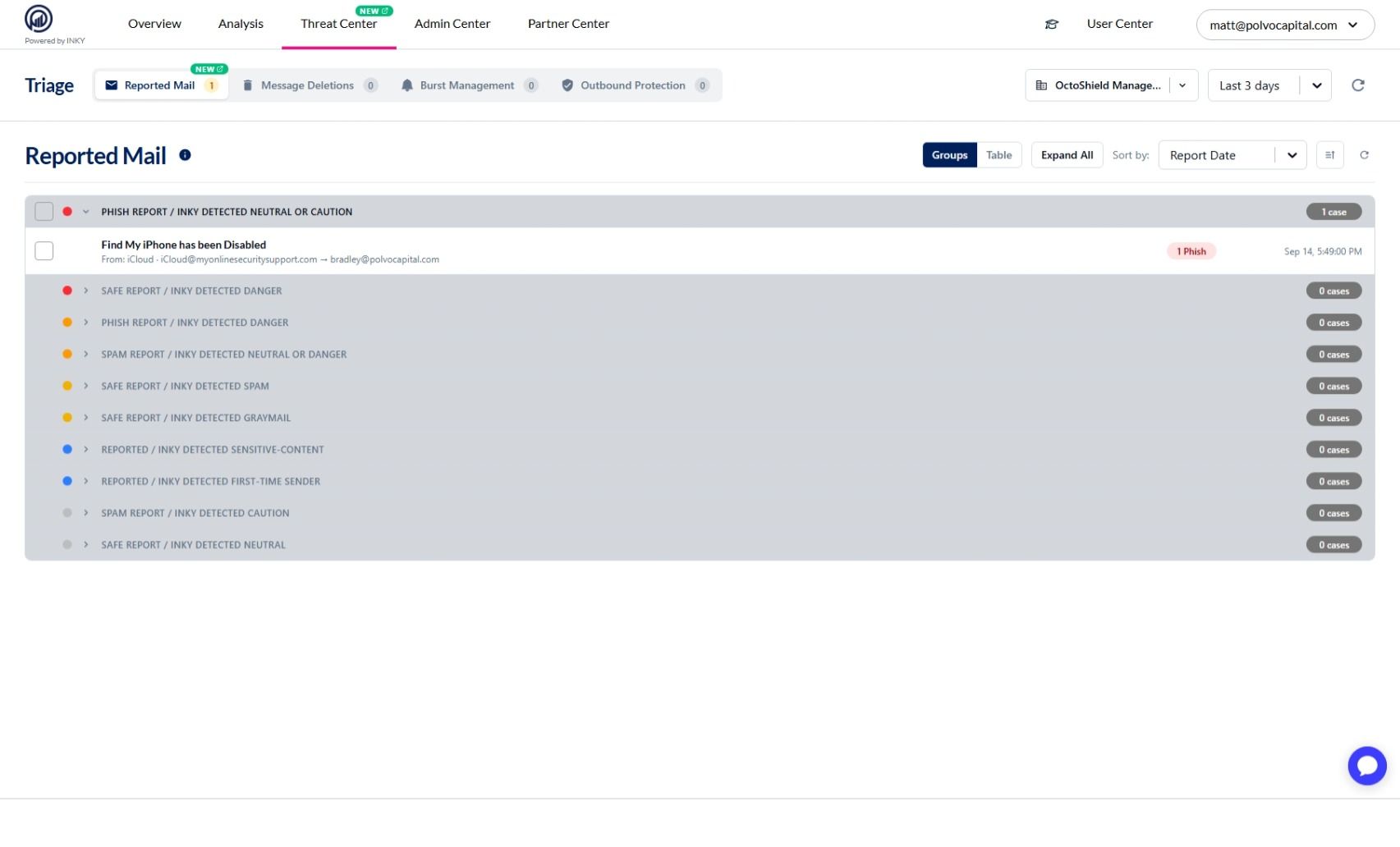
  • Threat Center is generally available. It brings the queues that need a decision into one place — reported mail, in-flight message deletions, burst activity, and account takeover enforcements — each with a live count in the tab bar so you can go straight to the one that needs work.

  • It was previously called Triage; the name changed in an earlier release and the tabs are unchanged.

  • Learn more: Using the Threat Center Page

Reported Mail is on for every team

See what your users reported, grouped by message, and act on the whole group at once.

  • Reported Mail was enabled team by team while it rolled out. It is now available to all teams as the first tab in Threat Center.

  • Reported emails are grouped by message rather than listed one report at a time, so a message several people reported is one row you act on once.

  • Learn more: Reported Mail

Account Takeover detection is out of beta

Spot a compromised account by the way it starts sending, and act before it reaches your customers.

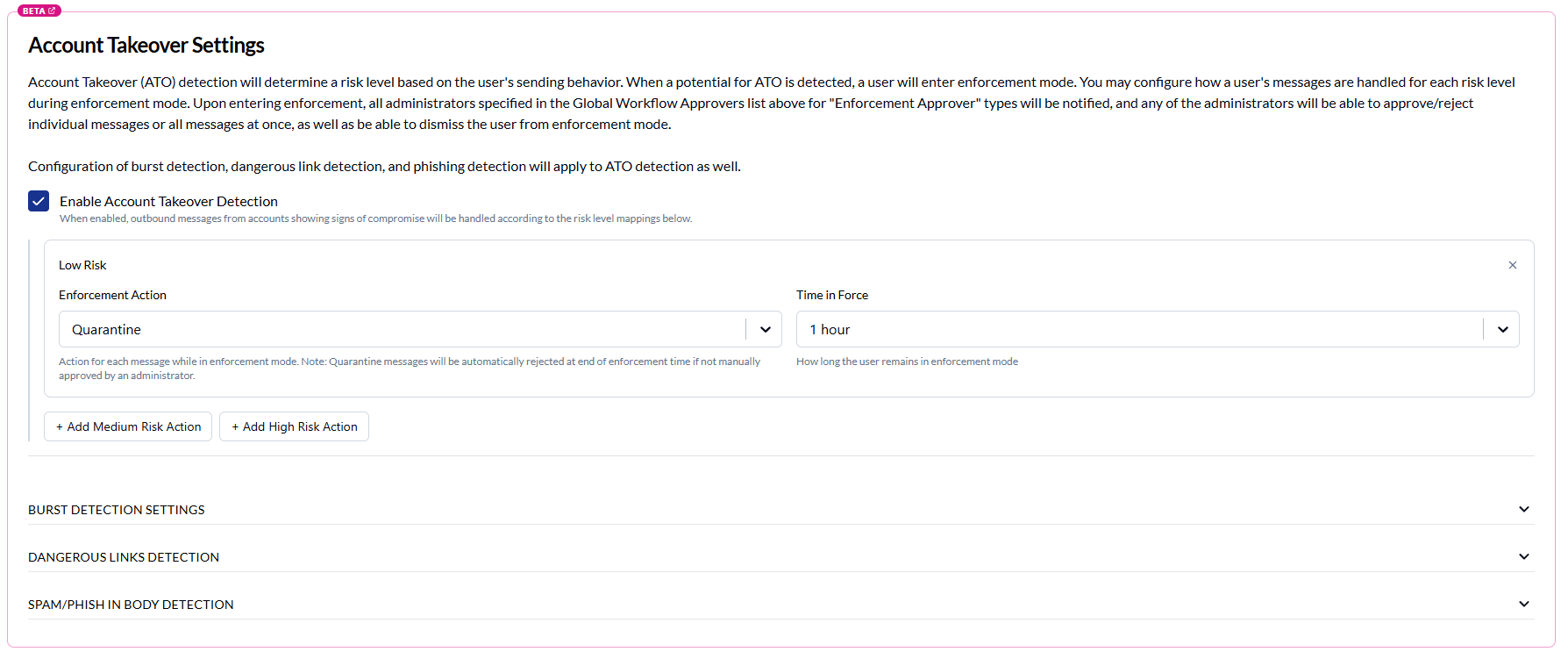
  • Account Takeover (ATO) detection is generally available. It scores outbound mail from each of your users on three signals — message bursts, dangerous links, and spam or phishing content — and puts a user into enforcement mode when their score crosses a risk level you have configured.

  • While a user is in enforcement, their outbound messages are delivered, quarantined or discarded according to the action you set for that risk level, and your ATO enforcement approvers are notified so they can review the messages and release the user.

  • Learn more: Account Takeover (ATO) Detection

Improvements

Clearer, more accurate LLM Assistance settings

Understand exactly what the setting governs and where your content goes.

  • The Analysis section formerly named "Smart Insights" is now "LLM Assistance", which is what the setting has always governed. It covers Smart Insights deep dives, a closer look at borderline messages, and review of AI Recommendations.

  • The description now names the managed LLM service used, states that requests are processed in the region your tenant is deployed in, and notes that US and EU tenants are served by separate INKY instances.

  • It also makes clear that turning LLM assistance off leaves the rest of detection running: machine learning, computer vision, sender profiling, and URL and attachment analysis are unaffected.

  • Learn more: Smart Insights feature guide

Fixes

Teams and team selection

  • Your team selection survives a slow start. After a deployment, the first lookup of your teams can take longer than usual while the service warms up, and an empty answer used to be indistinguishable from “you administer exactly one team”. Every page then showed your team name as fixed text with no way to change it, and the team you had chosen was replaced with your default team. A lookup that fails is now recognized as a failure: the picker stays usable, the team you had selected (or linked to) is found through search instead of being discarded, and the lookup is retried. Learn more: Switching Teams & Time Ranges

  • Home no longer returns to your default team after a failed lookup. It used to drop a remembered team that the lookup did not list, and a failed lookup lists nothing.

  • Picking a team found through search no longer fails to take effect. The selection is resolved from the search results, not from the full team list alone.

Outbound rules

  • Saving a rule the server rejected used to close the editor as though it had worked, and a failed clone quietly refetched the list. Both now report the failure in place and leave your work on screen.

  • An empty "This team's rules" heading no longer renders on teams that have no rules of their own.

Reports and navigation

  • Clicking a source or a user on the Graymail report now opens a list of that sender's graymail. It used to filter on the sender's address alone, so it returned everything they had ever sent.

  • The User Center dropdown no longer opens underneath the Observations Quick Search bar, and the "Message List" tab no longer paints over the open search menu.

Sign-in and account

  • A slow sign-in no longer shows a "couldn't load your account" notice beside a working dashboard. The notice used to stay for the rest of the session, on every page. This mostly affected partner logins, where the account lookup slows down as the number of teams grows.

  • Opening group management without the necessary permission now says permission is missing, instead of returning a server error page.

Trials and imports

  • A customer onboarded during a partner's evaluation no longer sees that partner's trial view. Trial state is now read from the team's own state, so nobody sees a setup band or a countdown for an evaluation they had no part in.

  • The Partner Center licenses page recovers on its own when a Graphus match goes stale. It used to stop with an import error.

Write a comment...

August 26th, 2026

New

Improved

Fixed

New Features

Search in Reports & Dashboards

Find a report or dashboard by name instead of scrolling the catalogue.

  • A search box now sits at the top of the Reports and Dashboards marketplace.

  • Type any part of a name to narrow the list as you go.

  • Useful once your catalogue has grown past a screenful, or when you know what you want and don't want to hunt for it.

To, Cc and Bcc on a delivered message

See exactly how each recipient was addressed on a message INKY delivered.

  • Expand the Delivered card on a message's timeline and recipients are now grouped by the header that carried them — To, Cc, and Bcc.

  • Recipients on the envelope but in neither the To nor the Cc header are shown as Bcc.

  • Sections with no recipients are left out, and a long list scrolls in place rather than stretching the card.

Enhancements

Account Takeover settings, reorganized

Configure the signals that drive Account Takeover detection in one place, whether or not you use ATO enforcement.

  • Burst, dangerous link, and spam/phishing detection are now grouped in a Compromised Account Detection Signals section, above the Account Takeover box rather than buried inside it. The section stays open, with only Additional Conditions collapsed.

  • The section is available to teams that only feed these signals to a SIEM, and the wording changes to match whether ATO risk scoring is switched on.

  • Enable Account Takeover Detection is now unavailable until at least one signal is enabled, because ATO has nothing to score without one.

Learn more about Account Takeover (ATO) Detection.

See what Account Takeover will actually do

Know the enforcement action every risk level will take, including the ones you haven't configured.

  • When some risk levels are mapped and others aren't, an Unconfigured Risk Levels summary now shows what the unmapped ones will do: fall back to the nearest configured level below, or to the Deliver default if there isn't one.

  • Turning ATO on with no risk mappings at all now warns you on the page and again when you save, since every detection would take the default Deliver action.

  • Choosing Discard for a risk level now says what that means for the sender: the message stays in their Sent folder with nothing to show it was never delivered.

Learn more about Account Takeover (ATO) Detection.

Releasing a user from enforcement

Act on a held user's mail knowing exactly how much is still waiting.

  • The Release User dialog now loads the enforcement's messages, so Approve and Reject show how many messages are still quarantined rather than a bare label.

  • Both options switch off once nothing is left to act on, and a summary shows what has already been approved or rejected against what remains.

  • Choosing Reject now warns that rejected messages are discarded permanently and cannot be recovered.

Learn more about the Threat Center page.

Outbound rule conditions explain themselves

Understand what a condition matches without leaving the rule editor.

  • Checkbox conditions now carry an info popover describing what they match.

  • Outbound burst prevention explains what preventing a user is for, not only what the setting does.

Learn more about configuring workflow rules.

Clearer account and setup messages

Get told what is actually happening at the points that used to be vague.

  • A suspended team's administrators are now told what to do about it, and each stage of suspension has its own wording instead of one notice that asserted a lockout that hadn't happened.

  • Granting API access now says up front that it opens a Microsoft sign-in.

  • Redeeming a licence no longer claims to need Microsoft admin consent, which it never did.

Keyboard and screen reader support

Navigate the console without a mouse.

  • The main navigation can now be operated from the keyboard; previously it responded to the mouse only.

  • Radio buttons now carry accessible names, so screen readers announce what each option is.

Performance

A faster Threat Center

Open the Threat Center on a busy team without waiting on the list to settle.

  • Each collapsed enforcement row used to fetch its full message list just to show a count — one request per row, every time the page loaded and again whenever you came back to the tab.

  • Message counts and last-message times now come from the enforcement list itself, and a row's messages are fetched only when you open it.

  • Moving between pages no longer rebuilds the console shell, so the header, navigation and team selector stay put instead of being torn down and redrawn on every navigation.

Learn more about the Threat Center page.

Fixes

  • Outbound approvers list — a rule with more than one approver overlapped the rows beneath it. Rows now grow with the approver count, showing up to three approvers and a "+x more".

  • Burst direction selector — the control was narrower than its own "Outbound" label, which rendered truncated.

  • Message list — a team whose mail INKY hadn't started processing was told its filters matched nothing, rather than that no mail had arrived yet.

  • Overview — the page painted empty charts over data it had never fetched. It now waits until it can answer, and an empty team with no top term is no longer reported as a failed query.

Write a comment...

August 19th, 2026

New Features

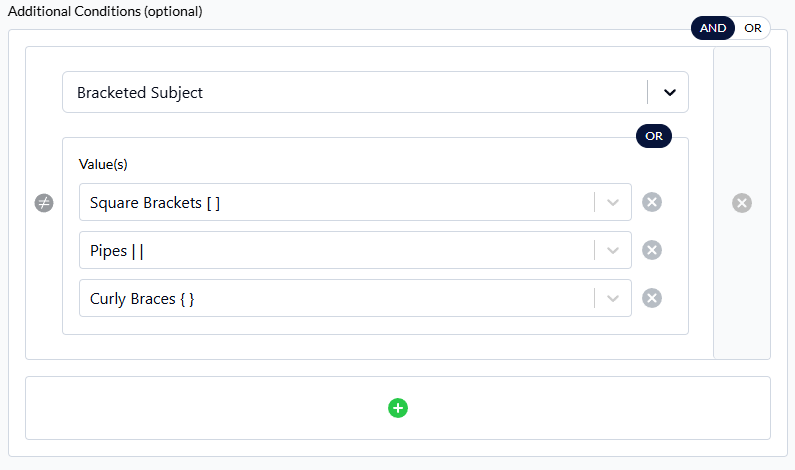
Bracketed Subject condition for outbound rules

Outbound rules can now match a subject line that is wrapped in brackets — the convention many senders already use to ask for a message to be encrypted.

  • Choose which bracket style the rule matches — Square Brackets [ ], Pipes | |, or Curly Braces { }. Select more than one and the subject matches if it uses any of them; a subject has only one outermost pair, so these combine with OR only and the rule editor shows a static OR badge in place of the AND/OR switch.

  • The whole subject must be wrapped in the style you select.

  • Reply and forward prefixes are stripped before matching, so a reply within an encrypted thread keeps matching the rule.

Example subjects, with Square Brackets [ ] selected:

  • [Confidential report] — matches

  • Re: [Confidential report] — matches; reply and forward prefixes are stripped first

  • [Secure Info] Attached — no match; the bracket has to close at the end of the subject, not partway through

  • Quarterly report [confidential] — no match; the subject has to start with the bracket

  • [Confidential report) — no match; the closing character must match the style

Learn more about Configure Workflow Rules for Inky here.


Improvements

Autotask user-report ticketing is now per report type

Autotask ticketing for user reports is configured per report type, so you can ticket only the reports you want to act on.

  • Safe, spam and phishing reports each get their own toggle and their own ticket priority.

  • Previously, turning User Reports on ticketed all three and required a priority for each, which made a phishing-only configuration impossible to save.

  • Existing connections keep every report type enabled, so the tickets you receive today do not change.

Learn more about Autotask Ticketing Integration for Inky here.


Bug Fixes

Outbound approvers list highlighted two rows at once

Selecting a rule in the outbound approvers list no longer highlights a second, unrelated rule alongside it.

  • When an account-takeover rule and a default rule shared the same sender pattern, selecting either one highlighted both.

  • Selection now distinguishes rules by match type as well as by sender pattern, so each row selects on its own.

Learn more about Set Up Workflow Approvers for Inky here.


Also available

Approve & Encrypt

A reminder of an option that is easy to miss: an approver can release a held outbound message and encrypt it in a single step, without sending it back to the sender.

  • Outbound workflow approval notifications carry a third action alongside Approve and Reject. Choosing Approve & Encrypt releases the message and delivers it as an encrypted notification rather than plain text.

  • The recipient receives a link to read the message through the INKY encryption portal, so a message that legitimately needs to go out does not travel in the clear.

  • Turn it on under Settings → Outbound Protection → Global Protection Settings by checking Enable Approve & Encrypt option in workflow notifications.

Requires INKY Pro, with outbound encryption licensed and configured for the team. Contact your account team if you do not see the setting.

Learn more about OMP Approve & Encrypt for Inky here.

Write a comment...

August 5th, 2026

New Features

Mesh upstream provider

INKY now recognizes mail relayed through Mesh and reads the original sending connection, so authentication and threat checks run against the real sender rather than Mesh's relay.

  • Select Mesh under Admin Center > Analysis > Upstream Provider, or leave the setting on auto-detect and INKY will identify it.

  • INKY recovers the sending IP, HELO, and MAIL FROM from the hop where Mesh accepted the message, and preserves any authentication results Mesh passed along.

  • Mesh is identified by its published inbound delivery ranges — including three EU ranges its own SPF record omits — so mail delivered from those ranges is recognized rather than silently missed.

Learn more about Upstream Provider for Inky here.


CyberHoot phishing awareness training

CyberHoot is now a selectable platform under Phishing Awareness Training, so its simulations and training assignments are handled without per-team exceptions.

  • Covers both CyberHoot mail streams: attack-based phishing tests from its dedicated relays, and training assignments that relay through Amazon SES.

  • Training assignments are matched on an authenticated cyberhoot.com sender rather than the shared SES addresses they arrive from, so no unrelated sender on that infrastructure inherits the same treatment.

  • This replaces the manual allow-list entries customers were adding by hand to stop quarterly training assignments being flagged on the brand names in their links.

Learn more about Phishing Awareness Training for Inky here.


Nimblr course invitations

Nimblr course invitations are now recognized as training mail, not just its simulations.

  • Previously only Nimblr simulations were identified, so course invitations were analyzed as ordinary mail.

  • Invitations are matched on Nimblr's authenticated sending domain plus its two published course-invitation addresses.

  • Simulations and invitations use the same sending domains, so both streams stay correctly and separately identified.


Improvements

Triage is now Threat Center

The Triage navigation item is now called Threat Center, and the browser page title matches it.

  • This is a rename only — the tabs and everything behind them are unchanged.

  • Tabs that are still rolling out carry an INTERNAL or BETA badge, which disappears on its own once the feature is generally available.

Learn more about Using the Threat Center Page for Inky here.


One message detail view everywhere

Message Deletions and Account Takeover used to open message detail as a slide-over panel. Every surface now opens the same centered modal with one responsive layout, so message detail looks and behaves identically wherever you open it from.


Clearer wording in message detail

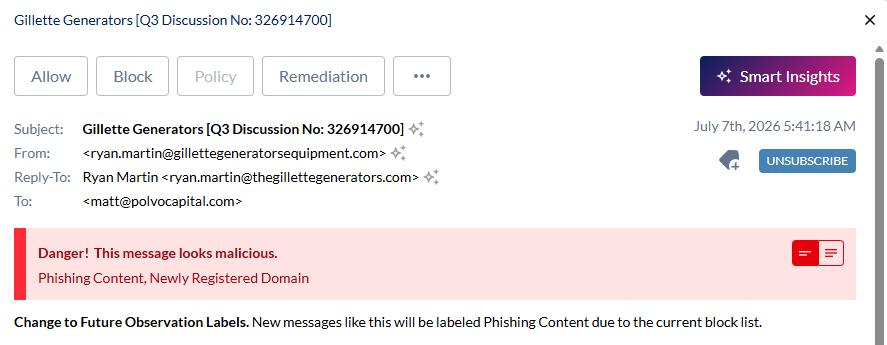
Message detail now describes what INKY found in plain terms instead of internal names.

  • INKY's assessment reads Neutral, Caution, or Danger in place of internal threat-level names.

  • A message's origin reads External or Internal.

  • Metadata rows were restyled, so labels and values are easier to scan.


The message timeline shows what INKY did

The timeline now runs horizontally and includes remediation actions and allow-list and block-list updates, each attributed to whoever or whatever applied them, so a message's full history reads in one place.


Full recipient list in message detail

The Delivered card expands to the complete recipient list and always shows its expand control, and a long delivery-hop list now scrolls inside its own card instead of stretching the view.


Enforcement detail cleanup

The Account Takeover enforcement view is easier to work through.

  • Redundant Dangerous Links and Phishing summary cards were removed.

  • The whole status box is clickable to end an enforcement, not just the shield icon.

  • Messages delivered while a user was under enforcement now show an ATO Delivered status, so you can tell them apart from mail delivered normally.


Fixes

Enforcement and deletion times showed the wrong clock

Threat Center enforcement rows and the Message Deletions list rendered backend timestamps as if they were already local, so times appeared shifted by your browser's offset from UTC. Both now display in your own timezone.


Misleading timeframe option

The quarantine timeframe selector offered "Last day", which read as a rolling 24 hours but actually selected the previous calendar day. It now reads Yesterday.


Long sender addresses overflowed their card

A long envelope sender on the Message Sent card now wraps inside the card instead of running past its edge.


Chat launcher in dark mode

The Ada chat launcher rendered with a white box behind it in dark mode. The launcher is now transparent against the dark background.

Write a comment...

July 29th, 2026

New

Improved

Smart Insights

Get an AI-powered second opinion on any inbound message, with a risk verdict, trickiness rating, and a plain-language explanation of why it was flagged.
AI-powered email analysis

  • Open any message under Settings > Analysis > Observations and click Smart Insights for a verdict (Likely Legitimate, Suspicious, or Likely Malicious), a trickiness rating, risk indicators, and supporting signals.

  • Disable it for a team to keep that team's mail out of the LLM at every phase of analysis.

  • Available on INKY Pro, on by default for entitled teams, with a per-team opt-out under Settings > Admin Center > Analysis > Smart Insights.

Learn more: Smart Insights feature guide - INKY

Country Codes and known-sender exclusions

Remove specific inherited blocked sender locations and known-sender entries for a single team without changing the parent policy.

  • Exclude individual inherited entries — blocked top-level domains, blocked sender locations (country codes), and known external senders — directly from Settings > Analysis.

  • Inherited entries appear as read-only tokens; clicking the × on one excludes it for your team (× again restores it), so the parent policy is never altered.

  • Tailor an inherited security policy to a team's real needs without duplicating or overriding the entire list.

Learn more about Organization settings & inheritance for Inky here.

Write a comment...

July 22nd, 2026

New

Improved

Fixed

New Features

Autotask Smart Ticketing

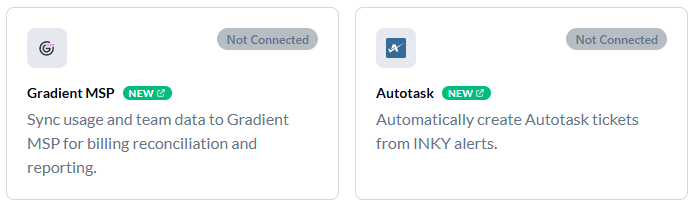
INKY alerts can now create tickets in your Autotask PSA automatically, so email security events land in the same queue your team already works from.

  • Tickets are created when a user reports an email as safe, spam, or phishing, and when INKY detects a potential account takeover.

  • Category, priority, issue type, and sub-issue type are pulled live from your own Autotask instance, so the options you pick always match your current setup.

  • Each INKY team maps to an Autotask company, so every ticket is filed under the right customer. Teams you haven't mapped fall back to a default company or create no ticket at all.

  • Setup is a three-step wizard on the Integrations page. You authorize once through Autotask's own sign-in screen; INKY never sees your Autotask credentials.

Available to Kaseya-provisioned MSP and MME partners.

Learn more about Autotask Smart Ticketing.


Gradient MSP integration

Connect INKY to Gradient MSP so your team and mailbox usage data flows into Gradient for billing reconciliation across your stack.

  • Gradient reads team membership and usage directly from INKY, so the numbers you bill against match what INKY is actually protecting — no spreadsheet exports or manual counts.

  • Setup is a short wizard on the Integrations page. INKY generates a scoped API key, you paste it into Gradient under Integrations → INKY, and INKY watches for Gradient's first call and confirms the connection for you.

  • The key is read-only and scoped to team and usage data only. It can't change settings, read mail, or act on your INKY instance in any way.

  • Connect once at the organization level and child teams are covered automatically or give an individual team its own connection when you need to bill it separately.

The key value is shown only once, when it's generated, so copy it into Gradient before you leave the page. If you lose it, generate a new one from the same wizard.

Available on Kaseya SKUs.

Learn more about the Gradient MSP integration.


Jump anywhere with the command palette

Press Cmd+K (or Ctrl+K on Windows) anywhere in the dashboard to open a search box that takes you straight where you need to go.

  • Search every page in the dashboard by name, without hunting through menus.

  • Search settings by what they actually do, not just what the page is called. Typing "QR code" finds the Analysis page; "whitelist" finds the allow list; "journaling" finds routing.

  • Jump straight to a specific setting, not just the page it lives on. The palette scrolls to the section and highlights it when you land.

  • Start common tasks directly, such as adding a sender to the allow list or block list, adding a VIP, or running a message trace.

The palette only shows what you can already reach, so what you see reflects your own permissions and your team's configuration.


Style the signature footer and disclaimer

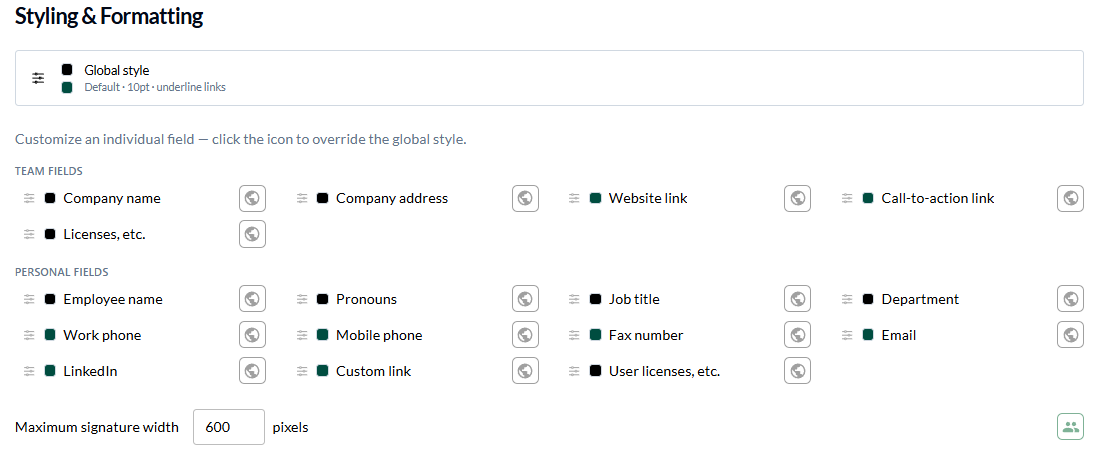
Set the font, size, and color of your signature footer text and mandatory disclaimer the same way you already style every other signature field.

  • Footer text and the mandatory disclaimer now have their own rows in the Layout tab's Styling & Formatting section, alongside the fields that were already styleable.

  • These styles inherit down the team hierarchy, so setting them once at the organization level carries to child teams unless a team overrides them.

  • This replaces hand-authored HTML for these two fields, which never inherited and had to be re-pasted for every team.

Learn more about Footers and Disclaimers and Signature Styling & Formatting.


See what your team inherits from its organization

Analysis settings that merge down the hierarchy now show the inherited entries read-only beneath your own, so you can add team-specific entries without re-entering what the organization already set.

  • Applies to known external senders, trusted third-party senders, blocked country codes, and blocked TLDs.

  • The editable field now holds only your team's own entries. Entries inherited from the parent organization appear below it in a read-only list.

  • Both sets still apply — inherited and team-specific entries are combined when INKY analyzes mail.

Learn more about Known External Senders, Trusted Third-Party Senders, and Organization Settings & Inheritance.


Fixes

Outbound rule conditions now evaluate

Conditions added to outbound burst detection, dangerous links, and spam and phishing rules are now saved in the format the analysis engine reads.

  • Previously these conditions were saved and displayed correctly but skipped during analysis, so the rule applied more broadly than configured.

  • Existing saved rules keep loading and are written in the corrected format the next time you save them.

Learn more about Configure Workflow Rules.


Per-field signature styles now save

Setting a per-field style override for the first time now enables Save and Revert. Previously the change wasn't recognized while the field was still inheriting, so it couldn't be saved.


Footer text editor restored

The footer text (HTML) editor is back in the Team Data tab, below the footer image controls. It was dropped when the tabbed signature layout was introduced.

Learn more about Logos & Footers.

Write a comment...

July 16th, 2026

New

Improved

Fixed

New Features

Signature editor: tabs & per-field styling

The signature editor has been redesigned into a tabbed workspace with fine-grained control over how each field looks.

  • Settings, Team Data, Layout, Users, and Managers are now separate tabs, so building a signature is a guided flow instead of one long form.

  • On the Layout tab, per-field font, weight, size, and color overrides let you style individual fields while everything else inherits your global style.

  • A live preview docks to the bottom of the editor — or float it or pop it into its own window — and refreshes as you edit.

Learn more about signature styling.


Redesigned Triage workspace

Triage is now organized into dedicated tabs, each with a live headline count in the tab bar, so you can jump straight to the queue that needs attention.

  • Dedicated Burst Management and Outbound Protection tabs, each showing a live count right in the tab bar.

  • Faster to scan what needs review without scrolling through one combined list.

Learn more about Triage.

Improved

Per-user burst prevention for outbound

Admins can now enable Prevent Burst for individual outbound users directly from the Burst Management panel, instead of applying it team-wide.

Account Takeover signals warning

INKY now warns you when burst, link, or spam detection is active while Account Takeover protection is turned off, so gaps in coverage are easy to spot.

Bug Fixes

  • Graymail Trend in reports: Graymail Trend charts now wait for data before a page is captured, so they no longer come out blank in printed or PDF reports.

  • Signature field-style tooltip: The field-style customizer popover no longer leaves its tooltip stuck on screen after you close it.

  • All Teams selector: The All Teams option is now hidden for single-team users, where selecting it could previously leave the team selector stuck.

  • Outbound Protection tab count: The tab now shows the correct number of active enforced users.

  • Reply Bait threat label: Messages classified as Reply Bait now display a proper named threat label.

  • Team access errors: Opening a team you don't have access to now shows a clear error instead of logging you out.

Write a comment...

June 24th, 2026

New

Improved

Fixed

New Features

Email signatures

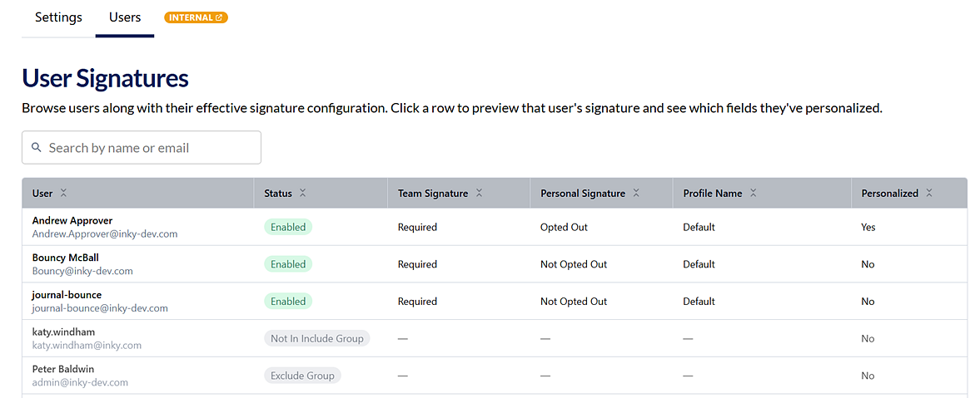
A new email signatures page makes it easy to manage team and per-user signatures in one place.

  • A dedicated user page for reviewing each user's signature — see how it renders and why, based on the team and per-user settings — with user search to find people quickly.

  • A new live signature previewer you can undock — it floats and follows you around the page, so you can always see how the signature looks while you edit.

  • Refined signature previews throughout the editor.

Learn more: https://help.inky.com/articles/6433055-user-signature-visibility

Audit log column resizing

Audit log columns can now be resized, so you can widen the fields that matter and fit more of the log on screen.

Improved

Standardized CSV exports

CSV export logic and file type are now consistent across Allow/Block lists, the Audit Log, Message Trace, Email Notifications, and VIP lists, so downloads open cleanly in spreadsheet apps.

Clearer settings help text

Added clearer help text for recipient scope and the outbound DLP display-matches setting so it's easier to understand what each option does.

KaseyaOne role label

The KaseyaOne "Master" role label has been renamed to "Admin" for clarity.

Faster signatures page

The user signatures page is now paginated, noticeably reducing load time on teams with large signature lists.

Bug Fixes

  • Ada help widget: Fixed an issue where the in-dashboard help chat would stop working after the page had been open for several minutes.

  • Content overflow: Long filter values and large attachment list no longer overflow their panes — filter columns and attachment chips now wrap and truncate correctly.

  • Triage: Fixed a crash in triage when a message had no recipients.

  • Account Takeover (ATO): ATO no longer shows "Delivered" for an expired message, and the notify-sender setting has been restored.

  • Admin settings Save/Revert: Save and Revert on admin settings pages now reflect whether there are unsaved changes instead of always being enabled.

  • Loading animation: Fixed the appearance of the loading animation.

Write a comment...

May 20th, 2026

New

Improved

Fixed

New Features

Triage page

A new Triage page brings detection review and message action together in one place.

  • Each message opens a slideout panel showing the full content, threat signals, and approve/reject controls.

  • The delivery timeline view makes it clear what happened to a message, when, and why.

  • Designed for daily review of suspicious mail without bouncing between pages.

Learn more about Triage.


Account Takeover (ATO) detection

ATO detection and enforcement is now fully configurable from the dashboard — no SIEM integration required.

  • Configure approvers, review detections with approve/reject per message, and see exactly which rule and condition matched.

  • Dangerous-link detection and rule trigger text are surfaced inline so reviewers can act with full context.

  • Enforcement history and delivery status are tracked alongside each detection.

Learn more about ATO detection.


Approve & Encrypt

Outbound workflows now support an Approve & Encrypt action.

  • Quarantined outbound messages can be approved for delivery with message body encryption applied automatically.

  • A new toggle on the outbound settings page controls availability.

  • The workflow portal shows proper status for approve-encrypt actions end to end.

Learn more about Approve & Encrypt.


Integrations page with SaaS Alerts

A new Integrations page replaces the old Enterprise settings page and ships with a SaaS Alerts (KSIEM) integration.

  • Guided setup wizard with real-time connection verification via webhooks.

  • Settings inheritance from parent organizations so partners can configure once and roll down.

  • Gated behind Kaseya entitlements.

Learn more about the SaaS Alerts integration.


OCR in Outbound DLP scans

Outbound DLP scans can now read text inside images, catching sensitive data embedded in screenshots and attachments that previously slipped through.

Learn more about OCR in Outbound DLP.


In-app Ada chat support

An in-app Ada chat widget is now available across the dashboard for support questions, with feature-flag-controlled rollout. The widget persists across page navigation so conversations and draft messages aren't lost when moving between pages.


KaseyaOne Organization ID editor

Partner super admins can now set or update a team's KaseyaOne Organization ID directly from the K1 role mapper page in admin settings, instead of asking engineering to update it via CLI.

Learn more about KaseyaOne Organization ID editor.


Improvements

Advanced Block List

The Advanced Block List has been migrated to a modern data table with virtualization and search, making it noticeably faster to scroll, sort, and find entries on large lists.

Dashboard tab persistence

The active tab selection in observation dashboards is now saved to the server and restored on return, so navigating away and back resumes where you left off.

Widget Filter Editor

The Widget Filter Editor modal is now noticeably taller, reducing how cramped the Matches and Selected panes feel on smaller screens.

Bug Fixes

  • Custom dashboard layout: Fixed tab sections not filling available viewport height, incorrect background colors on tall screens, and runaway height expansion in custom dashboard widgets.

  • Desktop approvers list: Fixed the approvers list not rendering rows on desktop.

  • Workflow navigation: Fixed a redirect that prevented users from seeing authorization errors on the workflow page.

  • Outbound rule exclusions: Exclusions configured on outbound rule conditions were not being saved when editing an existing rule (only when creating a new one). This has been fixed.

  • Latest Updates & Ideas Portal: Fixed an issue where the Latest Updates and Ideas Portal buttons in the user menu appeared but did nothing when clicked.

  • Bulk operation preview: The bulk operation confirmation modal now disables Confirm and shows a notice when the dry-run impact preview is still calculating, preventing operations from starting before their scope is known.

  • Ada chat widget persistence: The Ada chat widget no longer resets or disappears when navigating between dashboard pages — open panel state, draft messages, and conversation history are preserved across page changes.

Write a comment...

April 8th, 2026

New

Improved

Fixed

New

Autotask Integrated Customer Billing (ICB) - INKY usage data flows automatically into Autotask Integrated Customer Billing — no configuration needed in INKY. If your organization has KaseyaOne, Autotask, and INKY connected, you're all set.

For more on ICB setup and usage, see Integrated Customer Billing and Integrated Customer Billing (ICB) Billing Types

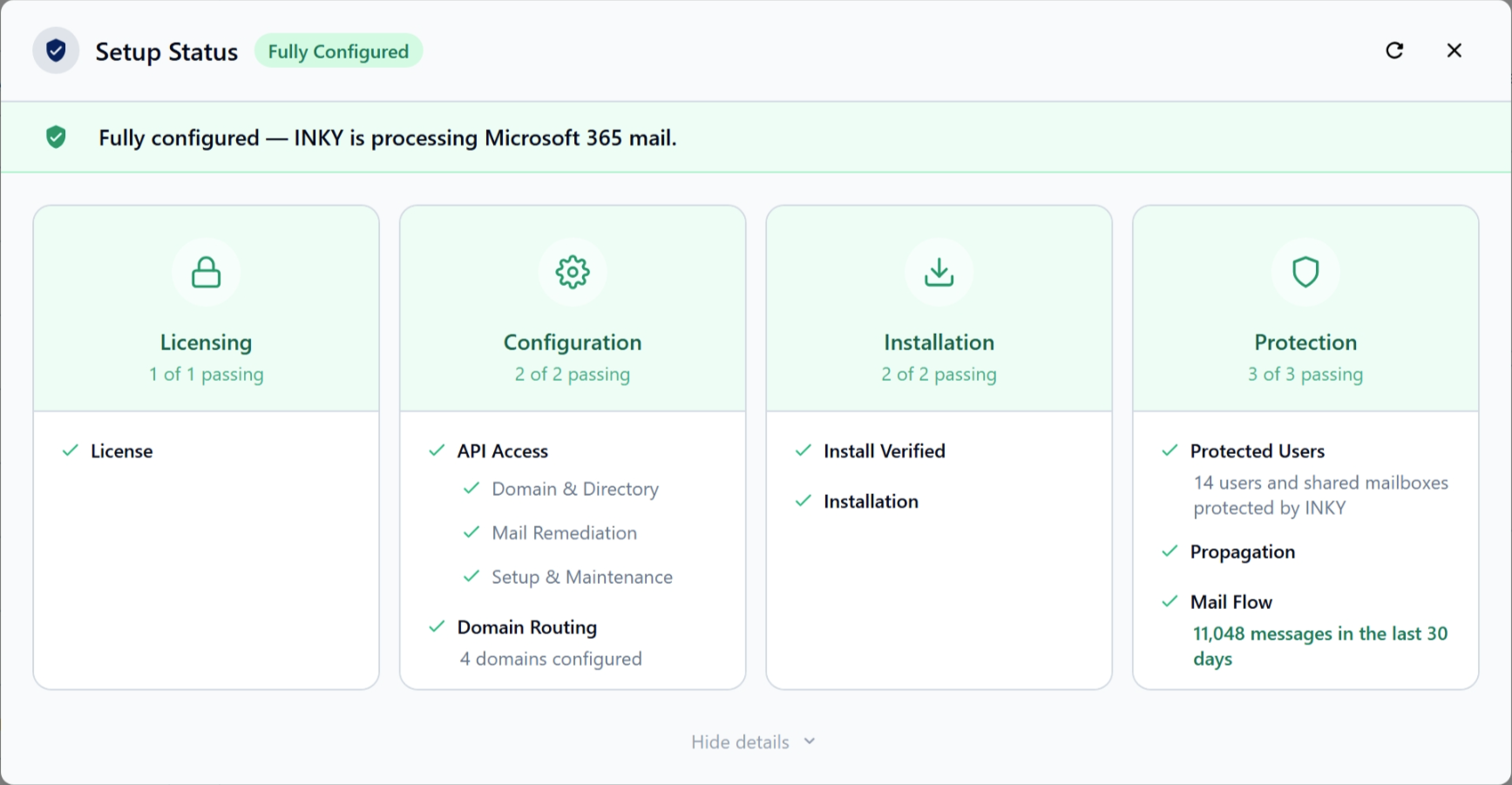
Setup Status — Getting your email routing configured correctly is now much easier. A new Setup Status section on the Settings Summary page walks you through the four phases of email routing setup, showing exactly where you are and what — if anything — still needs attention. Failing steps expand automatically so you can jump straight to what requires action, and the status refreshes on its own so you always have an up-to-date picture without manually reloading the page.

Improved

  • Tenant Operations tables — The Tenant Operations settings tables are faster and more responsive, with smoother rendering when browsing or searching entries.

Fixed

  • Fixed an issue where dashboard overview cards (threat level, top senders, result categories) did not fill their full height, leaving gaps in the layout.

  • Fixed an issue where the date picker in filter settings would scroll off screen instead of staying in view, and where numeric filter fields were difficult to edit.

  • Fixed an issue where scrolling through the observations list would stop loading additional results after reaching the bottom.

  • Fixed an issue where dashboard widgets would briefly flash when switching back to the browser window.

Write a comment...