Footers and Disclaimers
Add custom text to the bottom of email signatures for disclaimers, taglines, compliance notices, or additional company information. Footer text appears below all signature content and images.
Written By Matt Sywulak
Last updated 3 months ago
What They Do
INKY Email Signatures offers two ways to add text at the bottom of outbound emails:
Footer Text - Optional branding or marketing content within your signature layout. Appears only when signatures are enabled.
Mandatory Disclaimer - Required compliance text on every outbound email, regardless of signature settings. Always appears last.
Available in: Email Signatures add-on (all INKY bundles)
Key Differences
How They Display
Emails show content in this order:
Signature body (user details, logo)
Footer text (if profile includes it)
Mandatory disclaimer (if configured)
Example:
John Smith | Senior Account Executive Phone: (555) 123-4567 [Footer: "Schedule a demo: acme.com/demo"] [Disclaimer: "CONFIDENTIAL: This email and any attachments are confidential..."]Configure Footer Text
Footer text is part of signature layout design and varies by profile.
Setup
Navigate to Email Signatures in Admin Center
Select your profile
Open the Team Data tab and find the Footer Text editor, below the footer image controls
Enter your footer text
Click Save Changes
Best Practices
Keep it brief - 1-2 lines maximum
Time-sensitive content - Event registrations, product launches, campaigns
Different per profile - Sales team gets calendar links, Support gets help desk links
Update regularly - Change as campaigns conclude
Example
<strong>Acme Corporation</strong><br> This email is confidential. If you received it in error, please delete it.<br> <a href="https://www.acmecorp.com/privacy">Privacy Policy</a>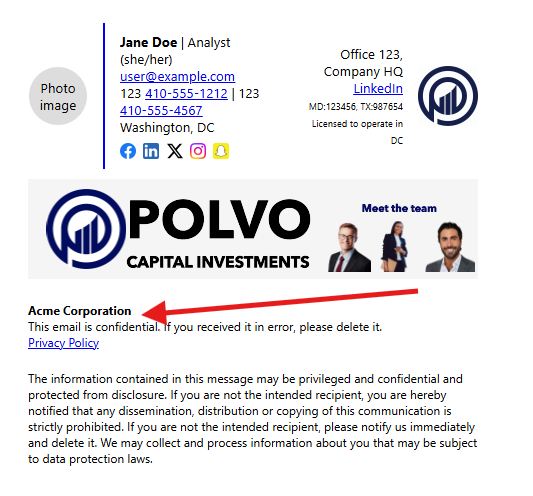
Configure Mandatory Disclaimer
Global setting affecting all outbound mail from your organization.

Setup
Navigate to Email Signatures in Admin Center
Scroll to Mandatory Disclaimer section
Enter disclaimer text
Click Save Changes
The disclaimer now appears on every email, regardless of signature status or user preferences.
Best Practices
Legal review required - Have legal team approve text
Include standard elements - Confidentiality, intended recipient notice, privilege claims
Test thoroughly - Verify on all email types and clients
Examples
Standard confidentiality:
CONFIDENTIAL: This email and any attachments are confidential and may be legally privileged. If you are not the intended recipient, please notify the sender immediately and delete this email.Healthcare (HIPAA):
CONFIDENTIALITY NOTICE: This email may contain Protected Health Information (PHI). If received in error, immediately notify sender and delete all copies.Email monitoring:
NOTICE: All emails are monitored for security and compliance purposes.Styling the Footer and Disclaimer
Both the footer text and the mandatory disclaimer can be styled from the Layout tab's Styling & Formatting section, the same as any other signature field. Click the icon on the field's row to set its font, weight, size, and color.
These per-field styles inherit down the team hierarchy, so setting them once at the organization level carries to child teams unless a team overrides them. Prefer this over hand-authored HTML inside the field: inline HTML doesn't inherit, so it has to be re-pasted for every team.
Common Scenarios
Marketing campaign + legal compliance Create profile with footer text for campaign CTA. Configure mandatory disclaimer separately. Both appear on emails.
Different footers by department Create profiles per department with appropriate footer text. Mandatory disclaimer appears on all.
Compliance-only (no signatures) Leave signatures disabled. Configure only mandatory disclaimer. Every email gets legal notice, no signature design.
Temporary campaign Update footer text for campaign period, then revert. Mandatory disclaimer stays constant.
Troubleshooting
Footer Text Not Appearing
Verify layout includes "Footer text" in the name
Check user assigned to correct profile
Confirm signatures enabled for user
Different layouts for new mail vs. replies
Mandatory Disclaimer Not Appearing
Verify text entered and saved
Check Email Signatures add-on enabled
Test sent items (may only appear to recipients in Google Workspace)
Formatting Issues
Set fonts, sizes, and colors from Styling & Formatting rather than inline HTML
Use plain text first, add HTML carefully
Some email clients strip formatting
Keep formatting simple for best compatibility
Was this helpful?
Still need help? Ask the team